Indexing Folders
Indexing is the process by which SoundBakery scans your audio folders, tags each file with AI, and builds a searchable database. This page explains how it works and how to manage your indexed libraries.
On this page
Adding Folders
To index a folder of audio files:
-
Open the Sidebar
Click the folder icon in the left sidebar. If collapsed, hover over the left edge of the window to reveal it.
-
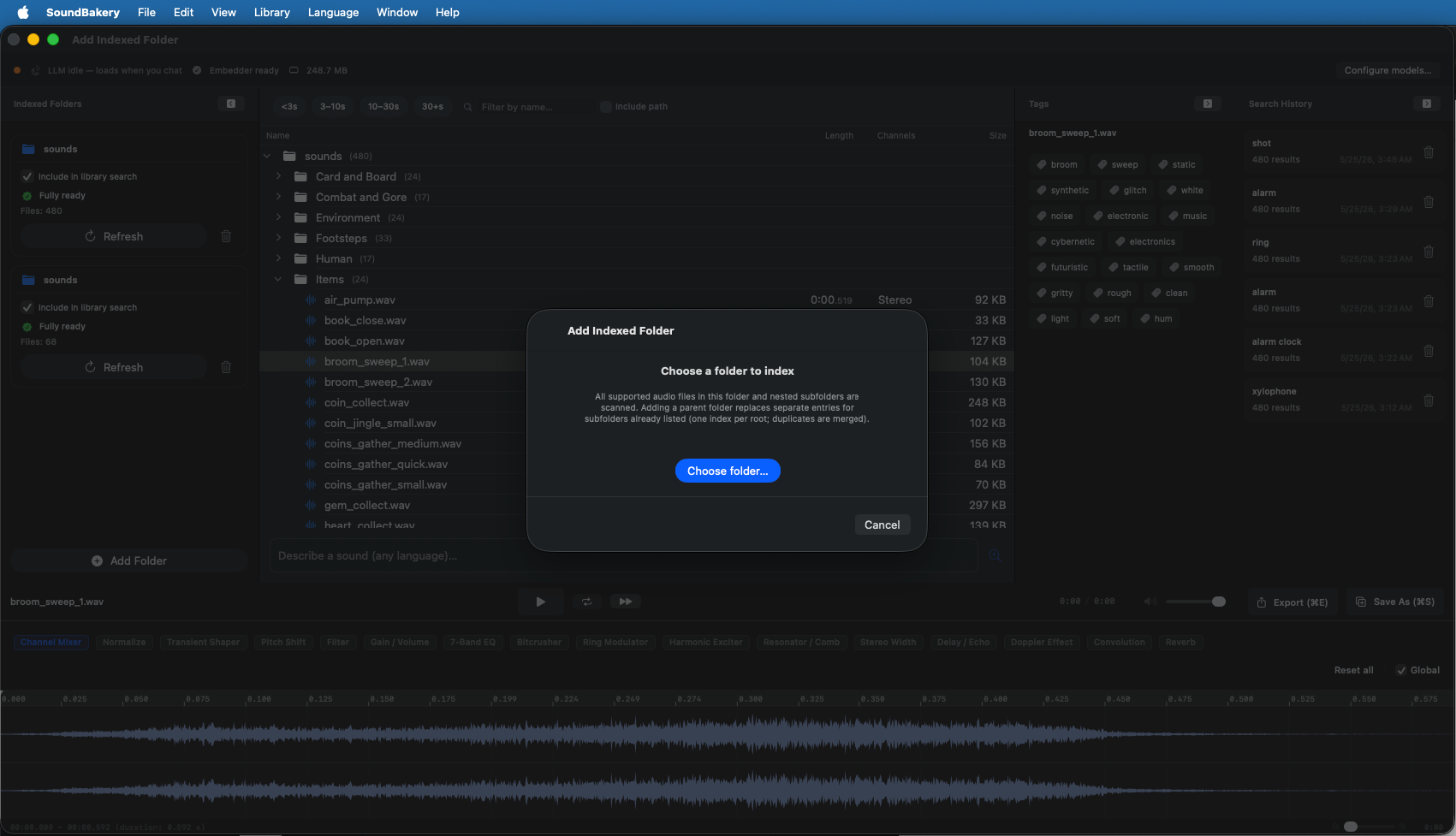
Click Add Folder
Click the Add Folder button at the top of the folders sidebar. A standard macOS file picker opens.
-
Select a Directory
Navigate to and select any folder containing audio files. The app will scan recursively (including subfolders).
-
Wait for Indexing
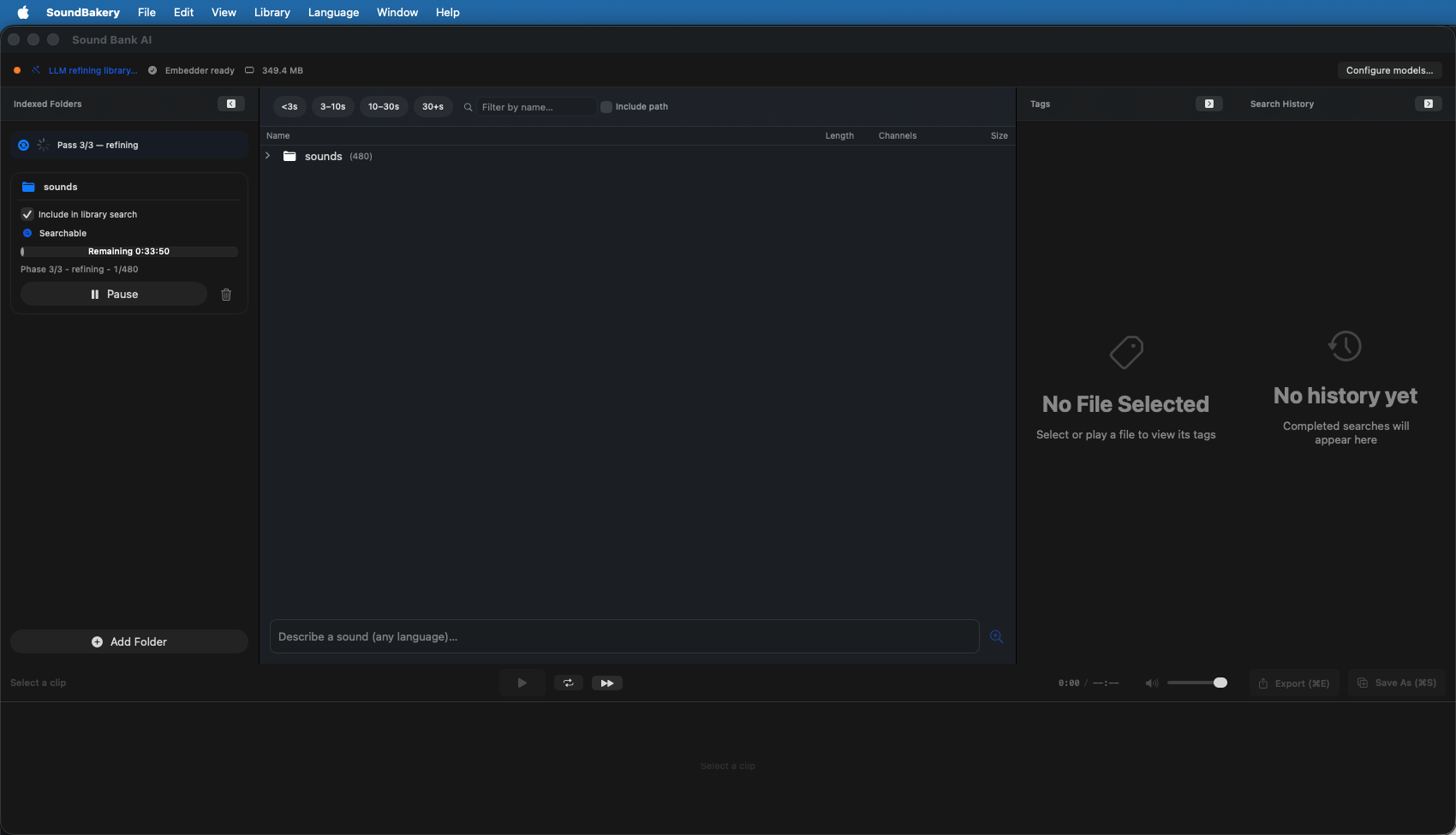
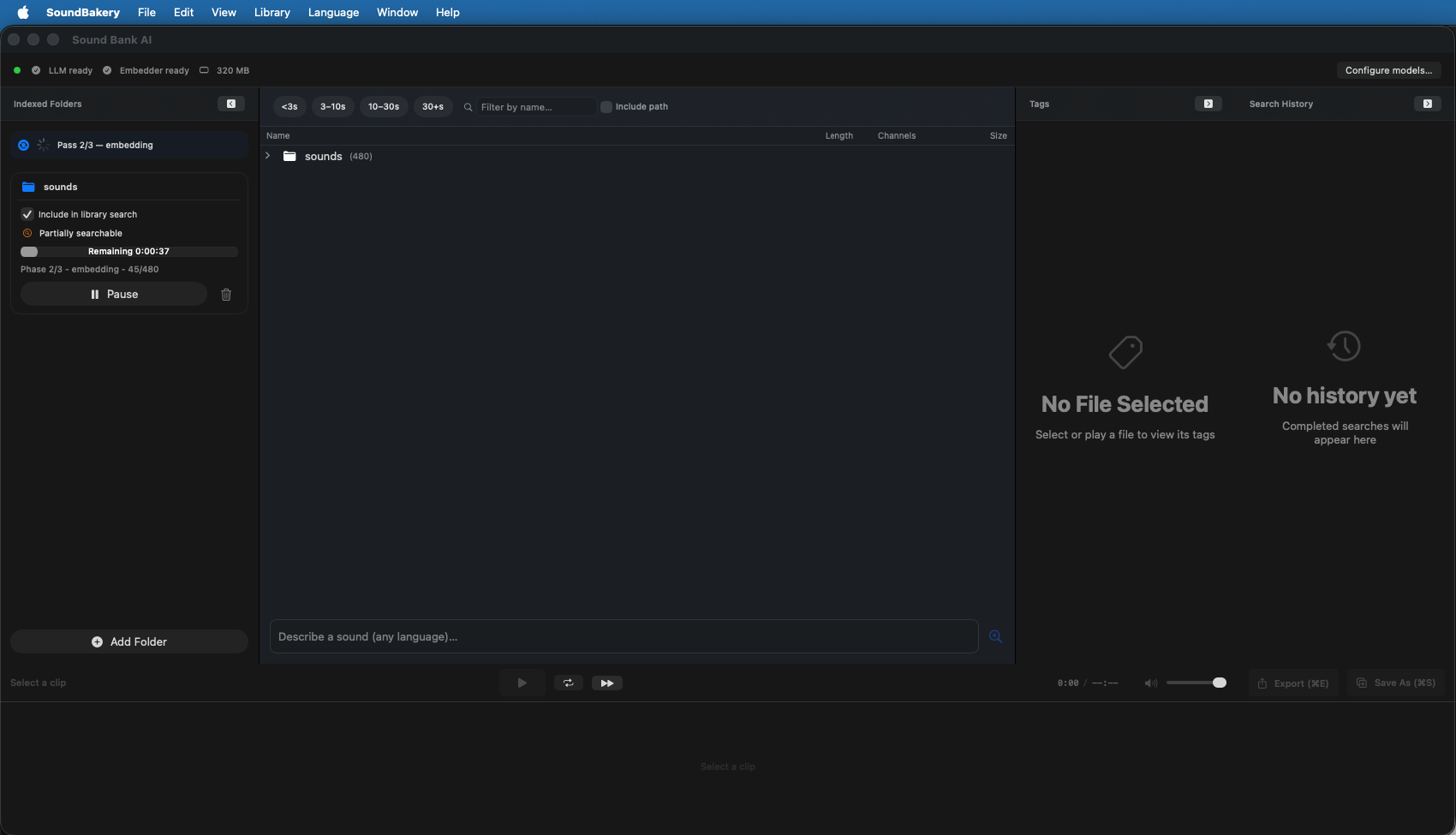
Indexing begins automatically. Progress is shown in the sidebar and a status indicator. You can continue using the app while indexing runs.
The Indexing Pipeline
SoundBakery processes each folder through a multi-stage pipeline:
| Pass | Stage | What Happens |
|---|---|---|
| 1 | Catalog Scan | The app recursively scans the folder listing all audio files. For each file it reads: filename, file size, last modified date, duration, sample rate, channel count, and format. This data is stored in a SQLite database. |
| 2 | CNN Audio Tagging | Each audio file is processed through a CNN classifier (either the bundled Honeycake model or Apple's SoundAnalysis). The model predicts acoustic characteristics and generates tags like "bright," "reverberant," "impact," "texture," etc. |
| 3 | LLM Tag Expansion | The raw CNN tags are expanded by the LLM into natural-language descriptions. For example, tags like "impact_metal_high" become "A sharp metallic impact sound with high-frequency resonance — suitable for hits, clanks, and industrial effects." |
| 4 | Embedding Generation | The expanded descriptions are converted into semantic vectors (embeddings) by the embedding model. These vectors enable natural-language search — when you search for "warm sub bass," the embedder converts your query into a vector and finds the closest matches. |
SoundBakery saves results after each pass. If the app is closed mid-index, it resumes from where it left off on the next launch. Already-indexed files are not re-processed.
Indexing Behavior
- New files — Automatically detected and indexed on re-index.
- Modified files — Detected by changed modification timestamps. Re-indexed on next scan.
- Deleted files — Removed from the catalog on next full re-index.
- Pause/Resume — Indexing can be paused and resumed via the sidebar controls.
- Background indexing — Continues even if you switch to other tasks in the app.
Supported File Types
SoundBakery supports common audio file formats:
| Format | Extension | Notes |
|---|---|---|
| WAV | .wav | Uncompressed PCM — fully supported |
| MP3 | .mp3 | Compressed — supported for playback and indexing |
| AIFF | .aiff, .aif | Uncompressed — fully supported |
| CAF | .caf | Apple Core Audio — fully supported |
| FLAC | .flac | Lossless compressed — supported for playback |
| M4A/AAC | .m4a, .aac | Compressed — supported |
Managing Indexed Folders
Removing a Folder
Right-click a folder in the sidebar and select Remove Folder. This removes the folder from the index but does not delete the original files.
Re-indexing
Click the refresh icon next to any folder to trigger a re-scan and re-index. This picks up new, modified, and deleted files.
Pause and Resume
During indexing, a pause button appears in the sidebar. Click it to pause indexing; click again to resume where it left off.
Database Maintenance
Over time, the indexing database may accumulate stale data. SoundBakery includes maintenance tools:
- Clean Index — Removes entries for files that no longer exist on disk. Also removes orphaned embedding vectors.
- Rebuild Vector Index — Rebuilds the sqlite-vec approximate nearest neighbor index for faster search.
- Backup Database — Creates a backup copy of the catalog database (
catalog.sqlite). - Restore Database — Restores from a previous backup.
Access these tools from the File → Database Maintenance menu.
SoundBakery automatically optimizes the database in the background. Manual maintenance is only needed after large-scale folder changes or if you notice performance degradation.