Setup & Configuration
This page covers all configuration options: model selection, remote API setup, and re-configuring after the initial wizard.
Setup Wizard Overview
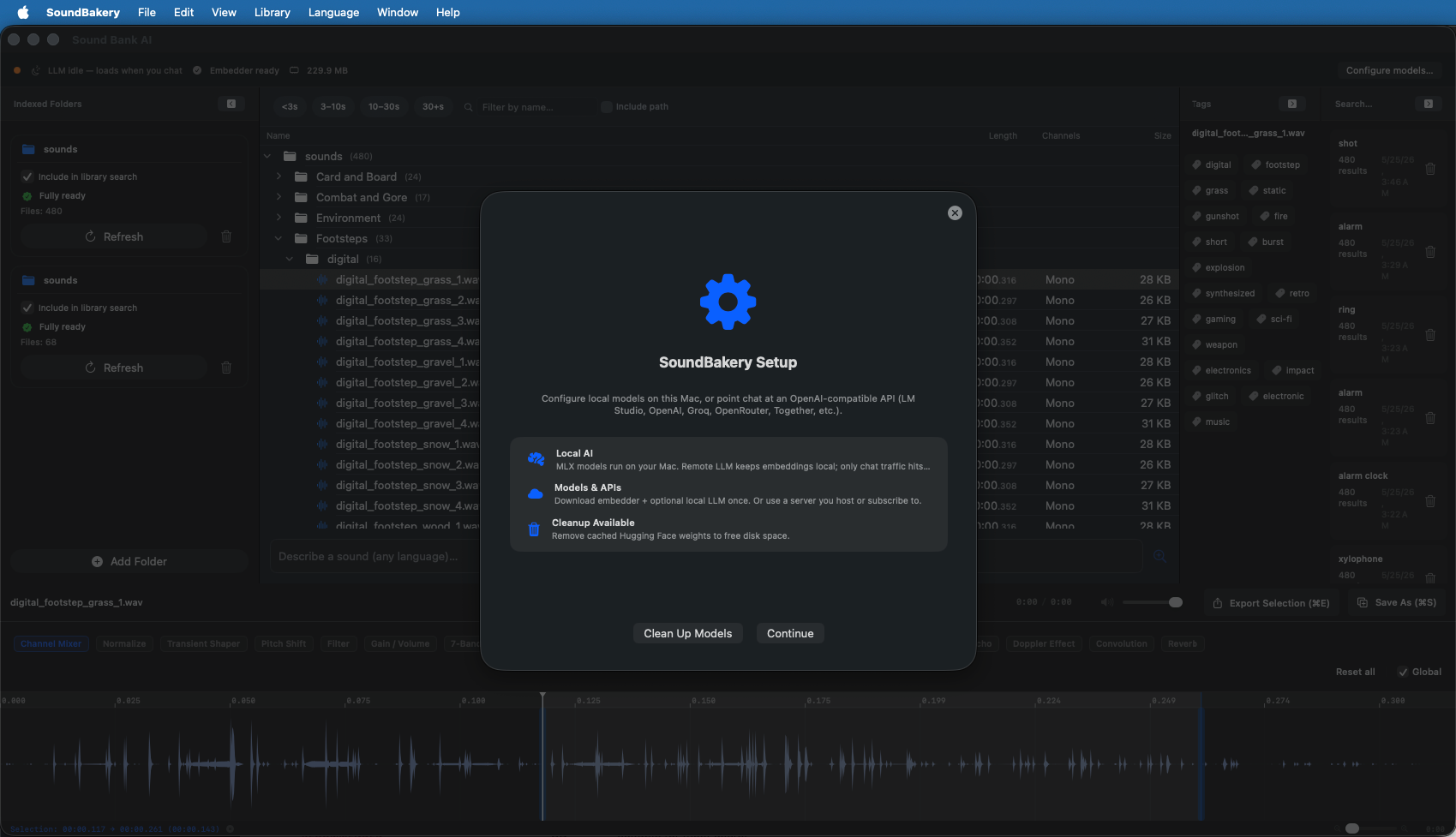
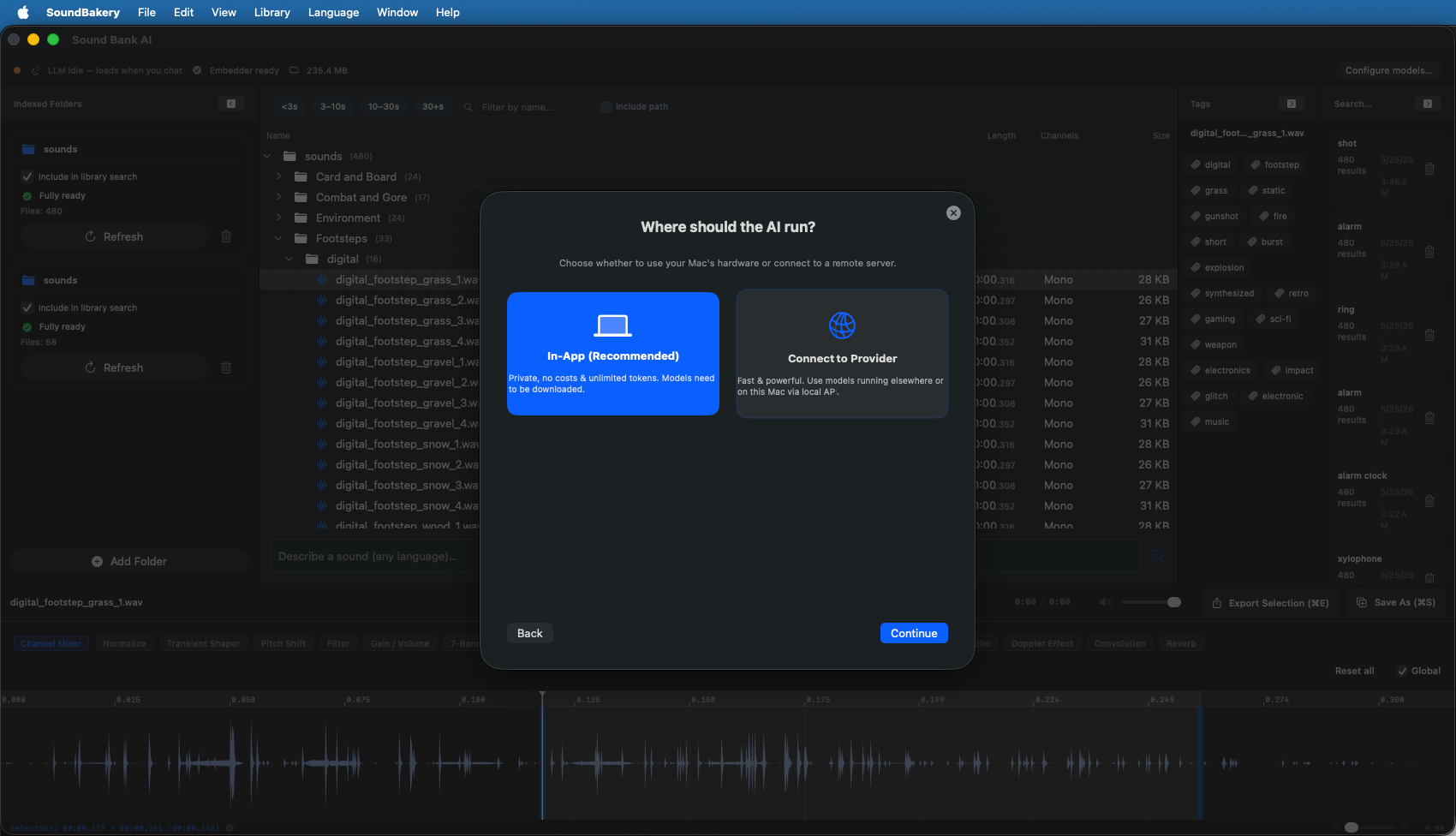
On first launch (or via SoundBakery → Configure Models), the Setup Wizard guides you through AI configuration. The wizard presents two paths: In-App AI (fully local MLX) or Remote Provider (connect to an external server).
Local AI Setup (MLX)
SoundBakery uses three types of ML models for its AI pipeline. When running in In-App AI mode, all models run on your Mac using MLX (Apple's machine learning framework for Apple Silicon).
Language Models (LLMs)
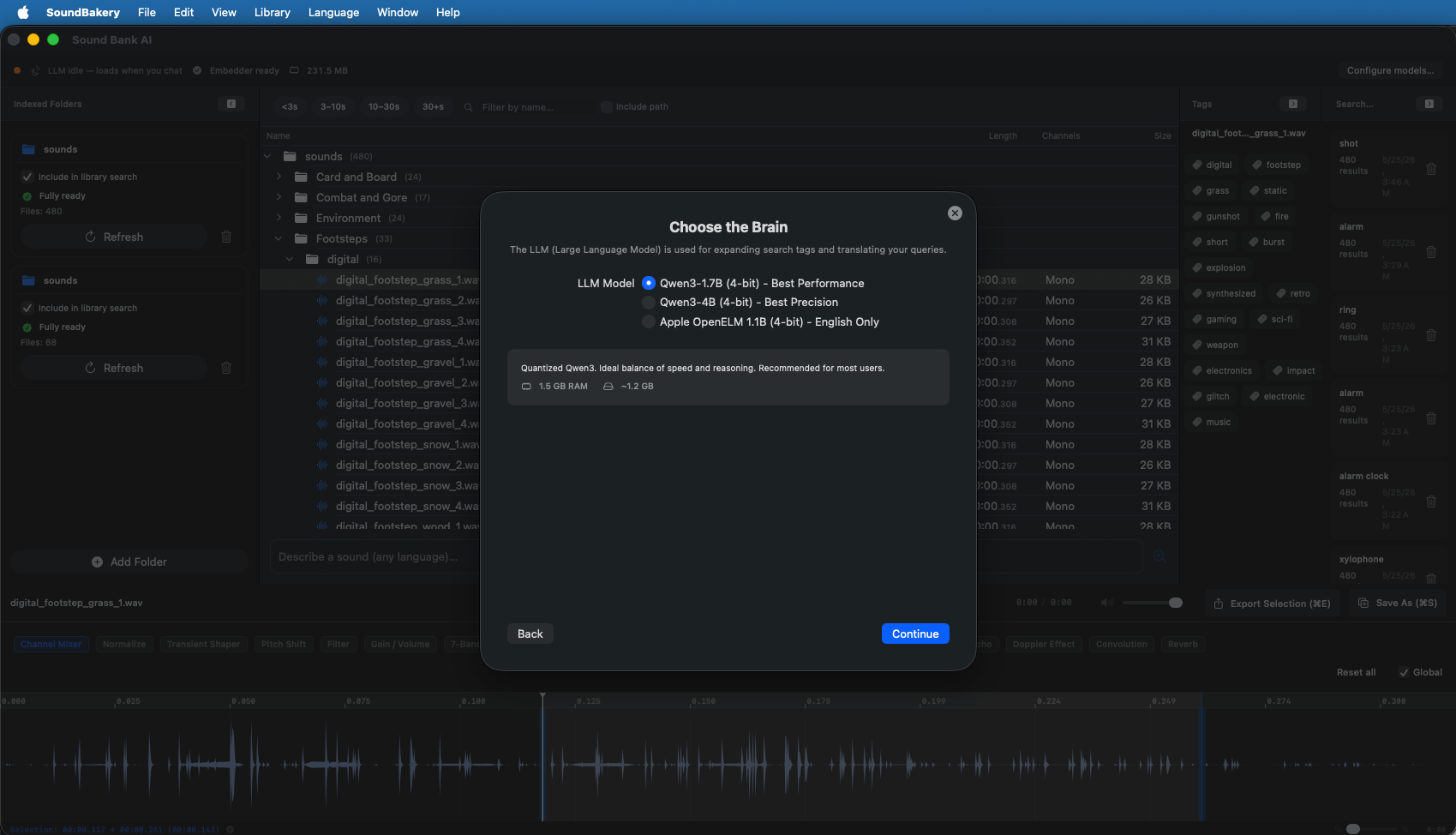
The LLM powers natural language understanding, intent routing, and tag expansion during indexing. All models are 4-bit quantized for efficiency.
| Model | RAM Usage | Disk | Best For |
|---|---|---|---|
| Qwen3-1.7B (4-bit) Recommended | 1.5 GB | ~1.2 GB | Best balance of speed, quality, and memory. |
| Qwen3-4B (4-bit) | 4.5 GB | ~2.5 GB | Best precision, requires 32+ GB RAM. |
| Apple OpenELM 1.1B (4-bit) | 1.5 GB | ~800 MB | English-only, fast, small download. |
Audio Classification Model (CNN)
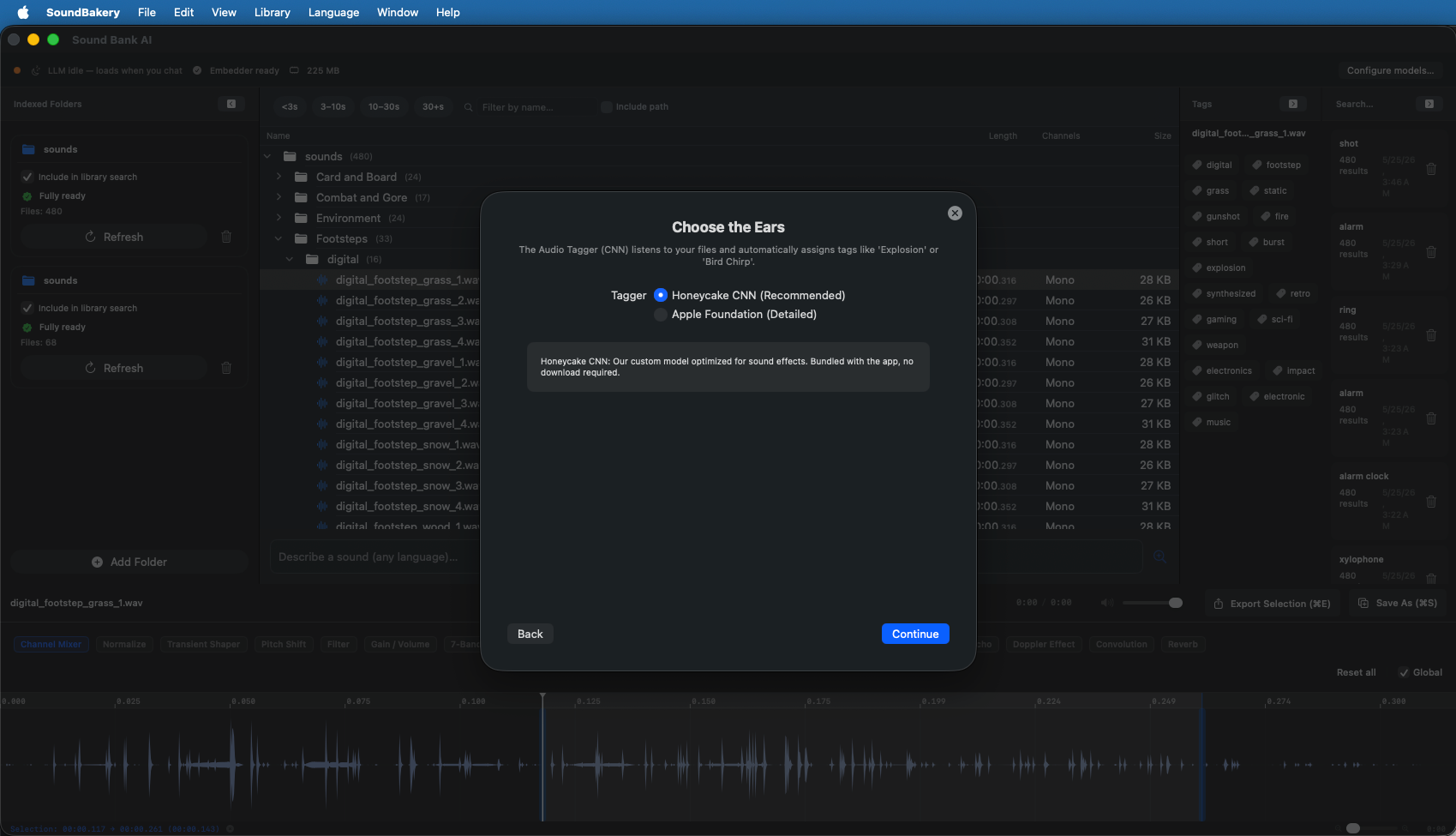
During indexing, SoundBakery automatically tags audio files with acoustic labels. You can choose between two taggers:
| Tagger | Source | Description |
|---|---|---|
| Custom CNN (Honeycake) | Bundled | Trained specifically for audio tagging. Detailed acoustic tags, always available. |
| Apple Foundation | macOS built-in | Uses Apple SoundAnalysis. General sound classification, no download needed. |
Embedding Models
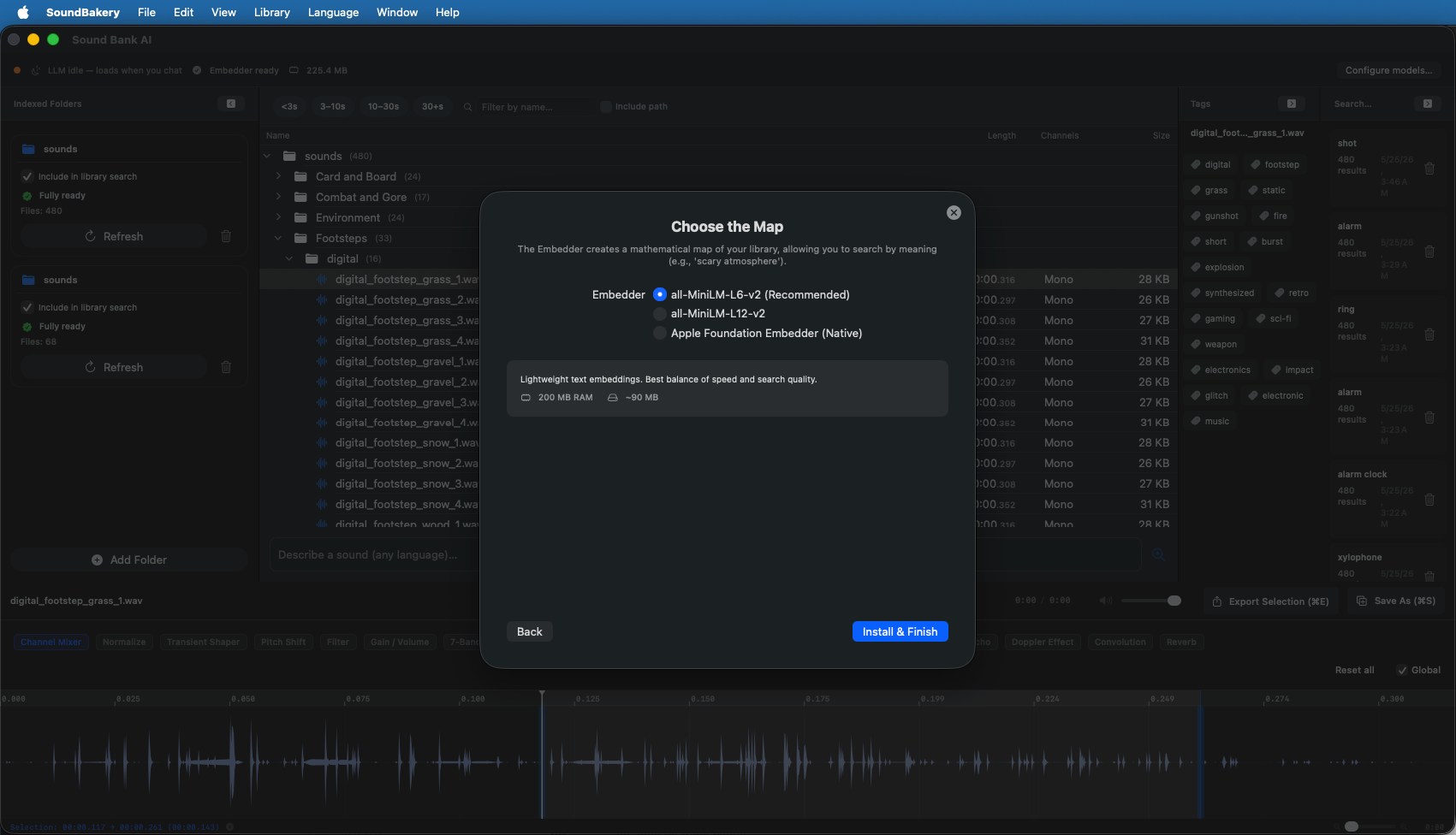
Embedders convert text descriptions into semantic vectors for search. When you search for "warm bassy kick drum," the embedder encodes that query and finds the closest matching audio files.
| Model | RAM Usage | Disk | Best For |
|---|---|---|---|
| all-MiniLM-L6-v2 Recommended | 200 MB | ~90 MB | Fast, lightweight, great search quality. |
| all-MiniLM-L12-v2 | 300 MB | ~150 MB | Slightly better quality, more dimensions. |
| Apple Foundation Embedder | Built-in | Built-in | Native Apple model, no download needed. |
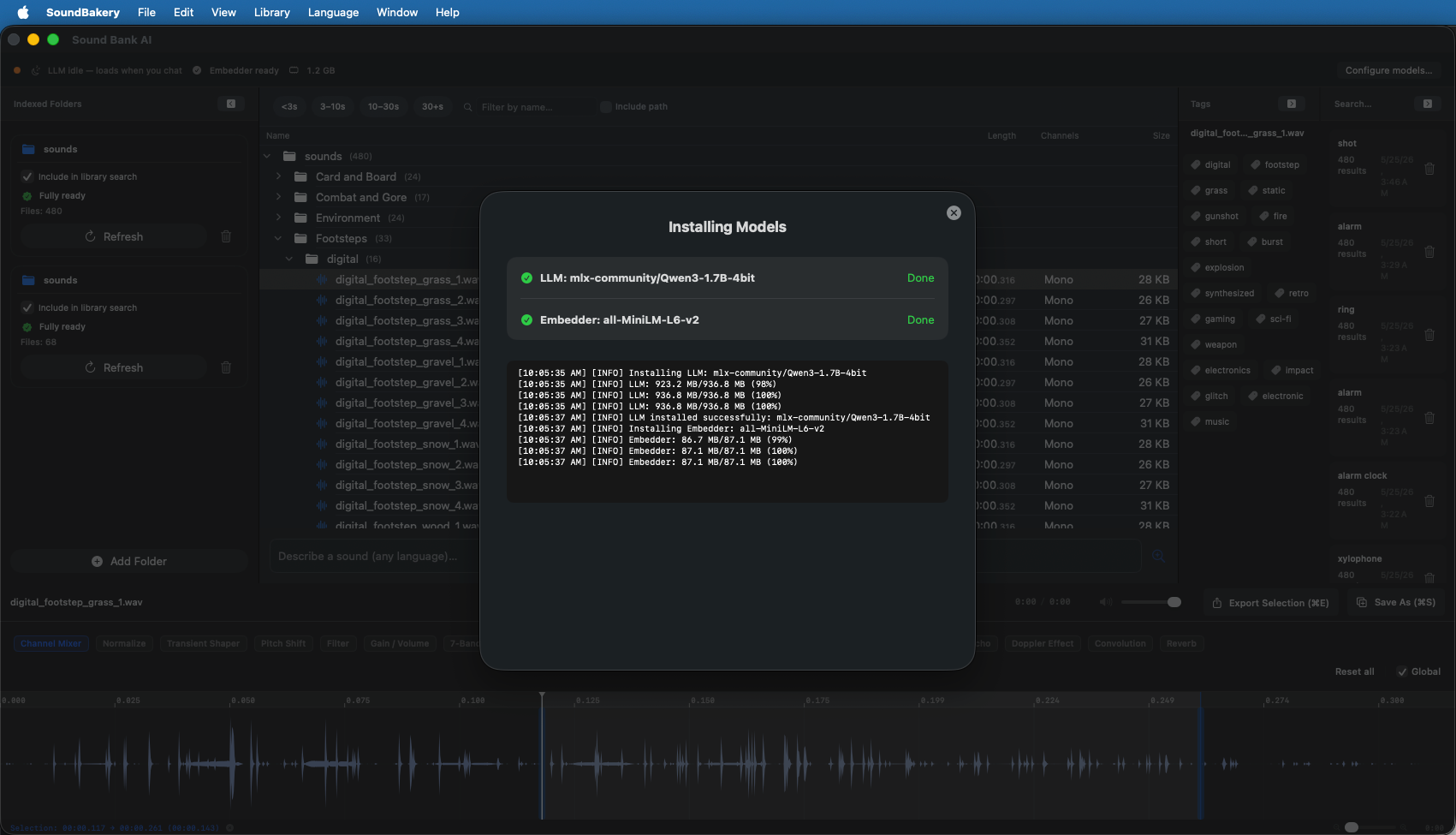
Download & Installation
Models are downloaded from HuggingFace Hub. Progress is shown for each model. Once complete, the wizard confirms setup is ready.
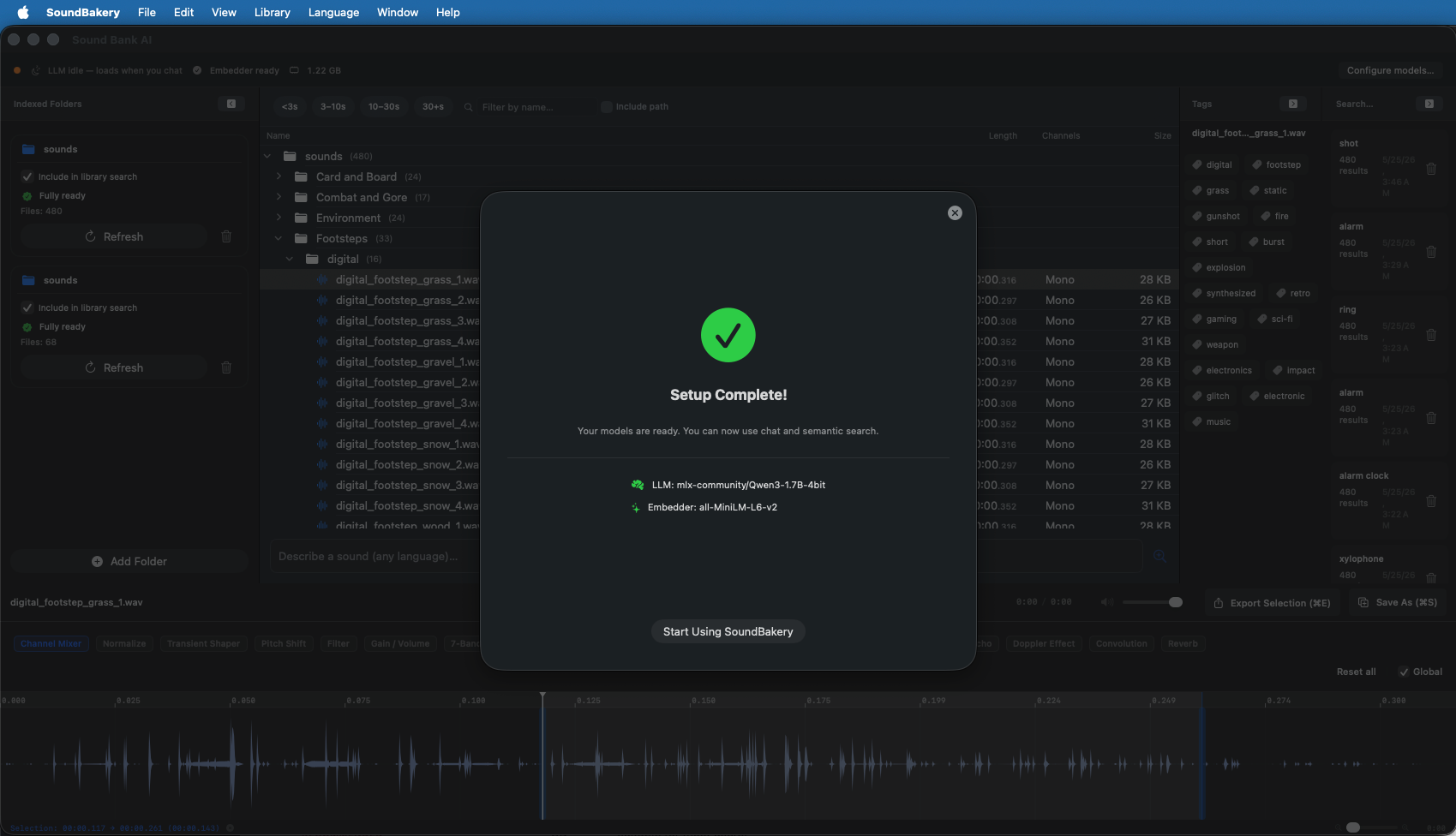
This combination offers the best balance of speed, quality, and memory usage for most users.
Remote API Provider
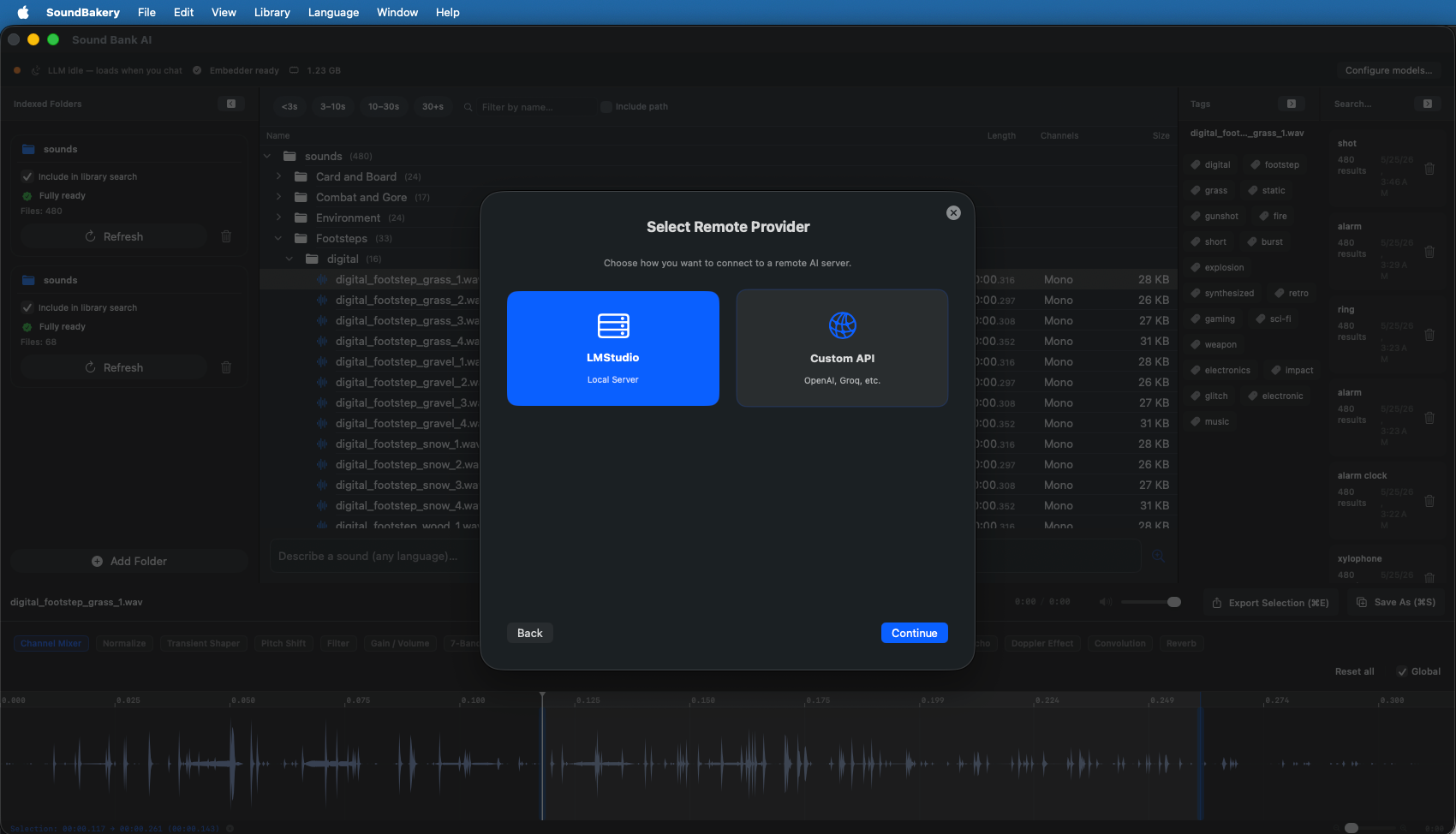
Instead of running models locally, you can connect to any server that speaks the OpenAI-compatible API. This includes:
- LM Studio — Run models on your Mac via a local HTTP server.
- OpenAI — GPT-4, GPT-3.5, and embedding models.
- Groq — Fast inference on dedicated hardware.
- OpenRouter — Unified API for many models.
- Together AI — Cloud inference for open models.
- Any server implementing
/v1/chat/completionsand/v1/embeddings.
After selecting Remote Provider on the choice screen, you choose the provider type:
LM Studio Setup
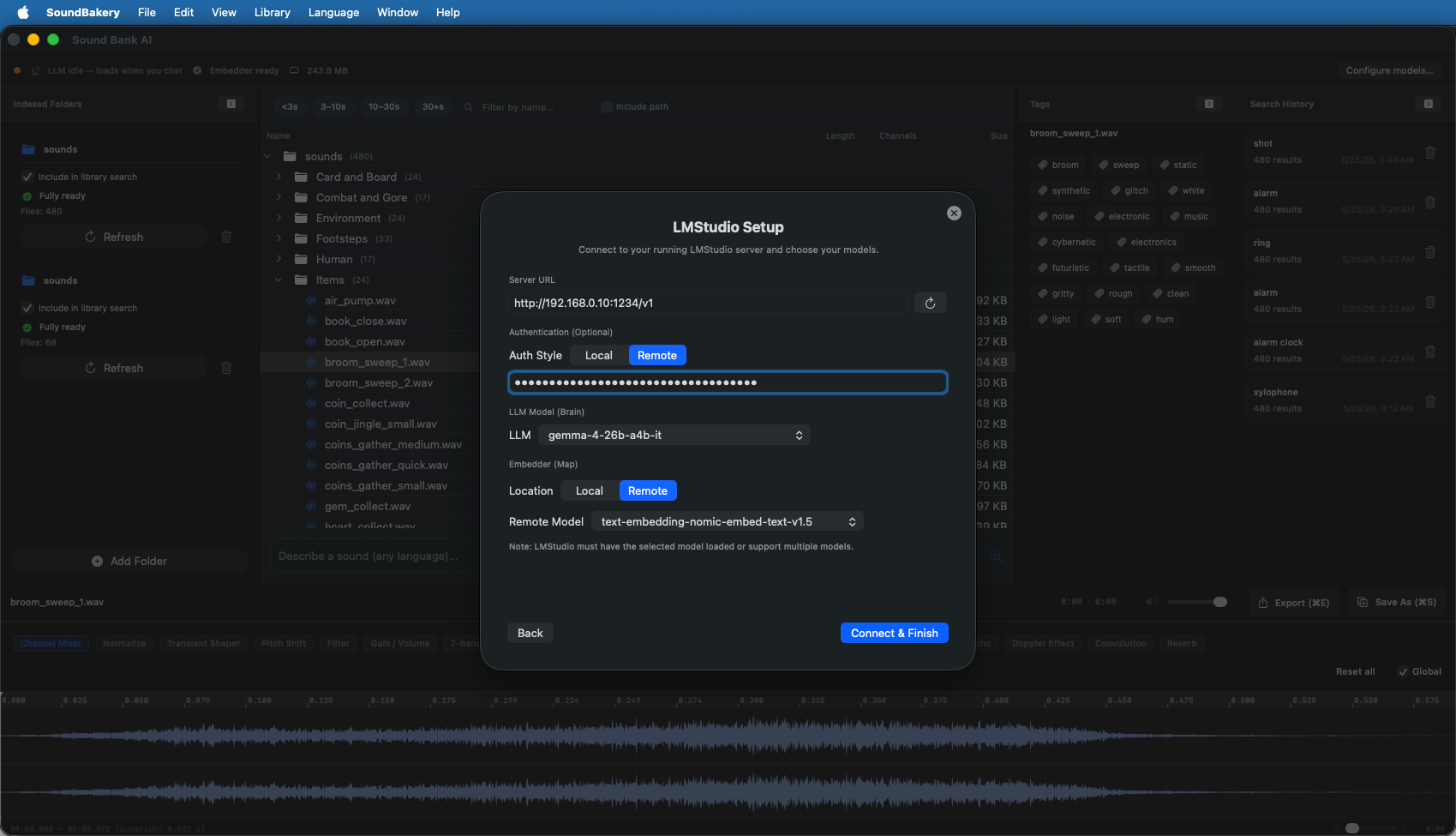
LM Studio runs models locally on your Mac and exposes them via an OpenAI-compatible HTTP API. Enter the server URL, configure authentication (if your LM Studio requires an API token), then click the refresh button to fetch available models.
| Setting | Description |
|---|---|
| Server URL | Typically http://127.0.0.1:1234/v1 for local LM Studio. |
| Auth Style | Select Remote (Bearer token) if LM Studio requires an API key, or Local for no auth. |
| Fetch Models | Click the refresh icon to load models from the LM Studio server into the picker. |
Custom Cloud API Setup
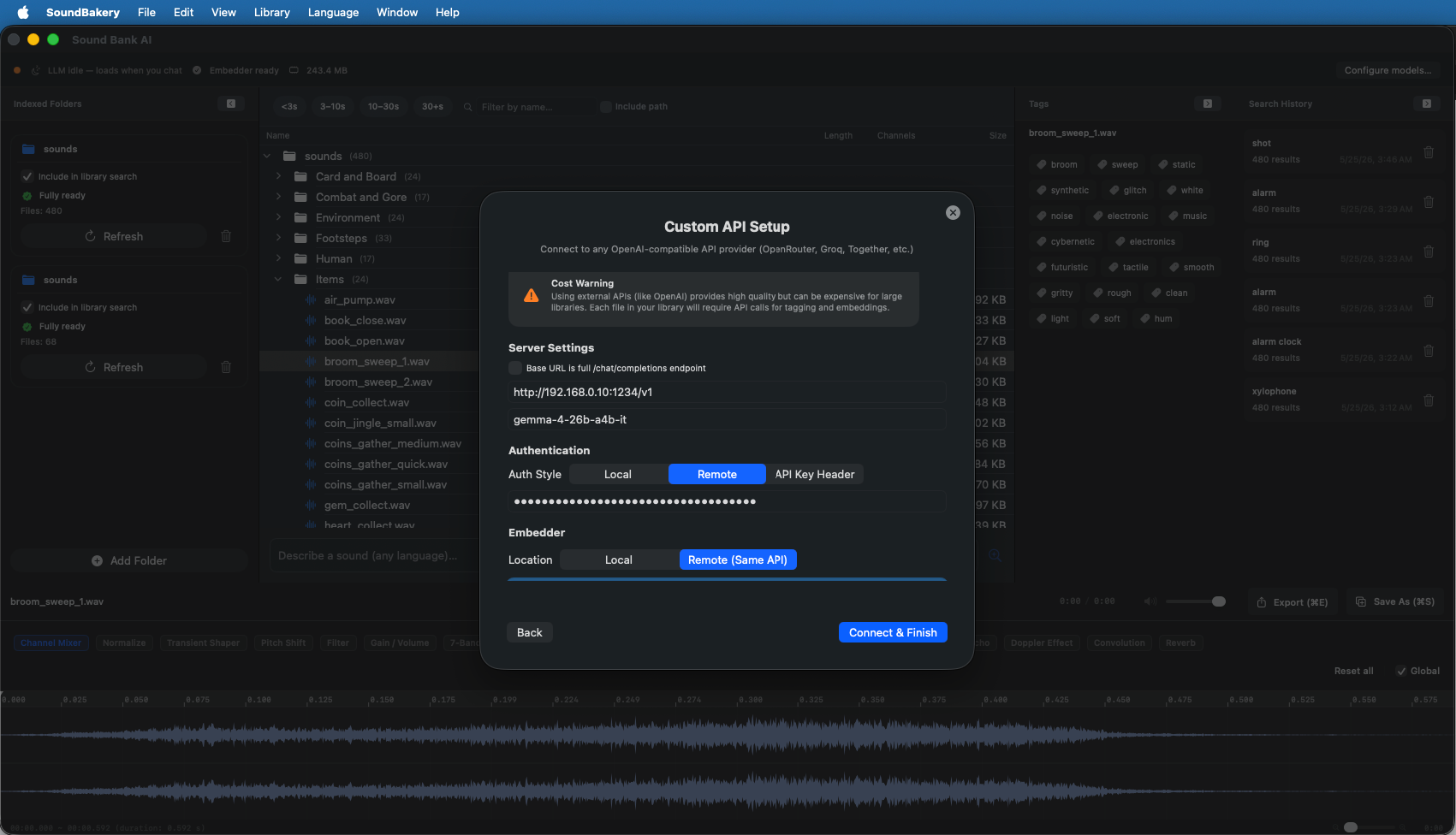
For OpenAI, Groq, OpenRouter, or any other OpenAI-compatible endpoint, configure the full API details:
| Setting | Description |
|---|---|
| Base URL | The server endpoint (e.g. https://api.openai.com/v1). |
| Model ID | The model name (e.g. gpt-4o, llama-3.1-70b). |
| Auth Style | Bearer Token (Authorization header) or API Key Header (Azure-style). |
| Use Full URL | If enabled, the app uses the provided URL as-is instead of appending /chat/completions. |
Credentials are stored securely in the macOS Keychain, not in app preferences or plaintext files.
Re-configuring
You can change your AI configuration at any time by opening SoundBakery → Configure Models from the menu bar. The wizard reopens with your current settings pre-filled. You can change models, switch between local and remote, or update connection details without losing your indexed catalog.
Your indexed catalog and settings are preserved when switching between local and remote AI. Only the inference backend changes.